
7 Essential Tips for Better Computer Performance
Whether you’re working, studying, gaming, or browsing, a slow computer can be incredibly frustrating. Over time, even powerful systems can lag if they aren’t maintained properly. The good news? With just a few simple adjustments, you can significantly improve your computer’s speed and performance.
In this guide, we’ll walk you through 7 essential tips to enhance your computer’s performance, extend its lifespan, and enjoy a smoother digital experience.
1. Clean Up Unnecessary Files and Programs
Why This Matters
As you use your computer, it accumulates junk files, unused programs, and cached data. These files take up valuable storage and slow down system performance.
What You Should Do
-
Use built-in tools like Disk Cleanup (Windows) or Storage Management (Mac).
-
Uninstall programs you no longer use.
-
Empty the recycle bin and clear browser cache.
✅ Tip: Tools like CCleaner can automate this process and help clean deep-level system files.
2. Disable Unnecessary Startup Programs
Why This Matters
Many programs automatically launch when your computer starts, increasing boot time and consuming resources in the background.
How to Fix It
-
On Windows: Press
Ctrl + Shift + Esc, go to the Startup tab in Task Manager, and disable apps you don’t need at startup. -
On Mac: Go to System Preferences > Users & Groups > Login Items and remove unnecessary apps.
✅ Tip: Only keep essential programs like antivirus enabled on startup.
3. Upgrade RAM for Multitasking
Why This Matters
RAM (Random Access Memory) determines how many tasks your computer can handle at once. If you’re experiencing lag during multitasking, it might be time for an upgrade.
What You Can Do
-
Check your current RAM usage via Task Manager (Windows) or Activity Monitor (Mac).
-
Upgrade to 8GB or 16GB of RAM for improved performance, especially if you use heavy software like video editors or games.
✅ Bonus: Upgrading RAM is one of the most cost-effective ways to speed up your computer.
4. Scan for Viruses and Malware
Why This Matters
Viruses, spyware, and other malicious software can slow your system, steal data, and cause crashes.
How to Stay Protected
-
Install a trusted antivirus like Windows Defender, Bitdefender, or Malwarebytes.
-
Perform regular system scans and keep your antivirus updated.
-
Avoid downloading unknown files or clicking suspicious links.
✅ Tip: Use real-time protection and schedule weekly scans for safety and performance.
5. Keep Your Operating System and Drivers Updated
Why This Matters
Outdated operating systems and drivers can lead to compatibility issues, security risks, and performance problems.
What to Do
-
Enable automatic updates in Windows or macOS.
-
Use tools like Driver Booster to keep hardware drivers up to date.
-
Always back up your system before major updates.
✅ Tip: Updated software also ensures better resource usage and reduced system errors.
6. Defragment and Optimize Your Hard Drive (For HDD Users)
Why This Matters
If you’re still using a traditional HDD (Hard Disk Drive), data gets fragmented over time, slowing read/write speeds.
How to Optimize It
-
Use Defragment and Optimize Drives in Windows.
-
Schedule weekly defrags to keep the drive running smoothly.
⚠️ Note: Do not defrag an SSD (Solid State Drive) — it can reduce the lifespan. SSDs use different optimization techniques.
7. Manage Background Processes and Services
Why This Matters
Many background apps run silently and consume CPU and memory, making your computer slow even when you’re not actively using it.
How to Manage It
-
On Windows: Use Task Manager > Processes tab to identify and stop resource-hogging apps.
-
On Mac: Use Activity Monitor to find heavy apps and quit them.
✅ Advanced Tip: Use the Services panel (Windows) to disable non-essential background services that auto-start.
Bonus Tip: Consider Switching to an SSD
If your computer still uses an HDD, upgrading to a Solid State Drive (SSD) can dramatically improve boot times, file access speed, and overall system performance.
SSD benefits:
-
Faster data access
-
Lower power consumption
-
Less noise and heat
Conclusion: A Faster, Healthier Computer Is Just a Few Steps Away
Improving your computer’s performance doesn’t always require buying a new machine. With regular maintenance and a few upgrades, you can enjoy faster load times, smoother multitasking, and a more productive experience.
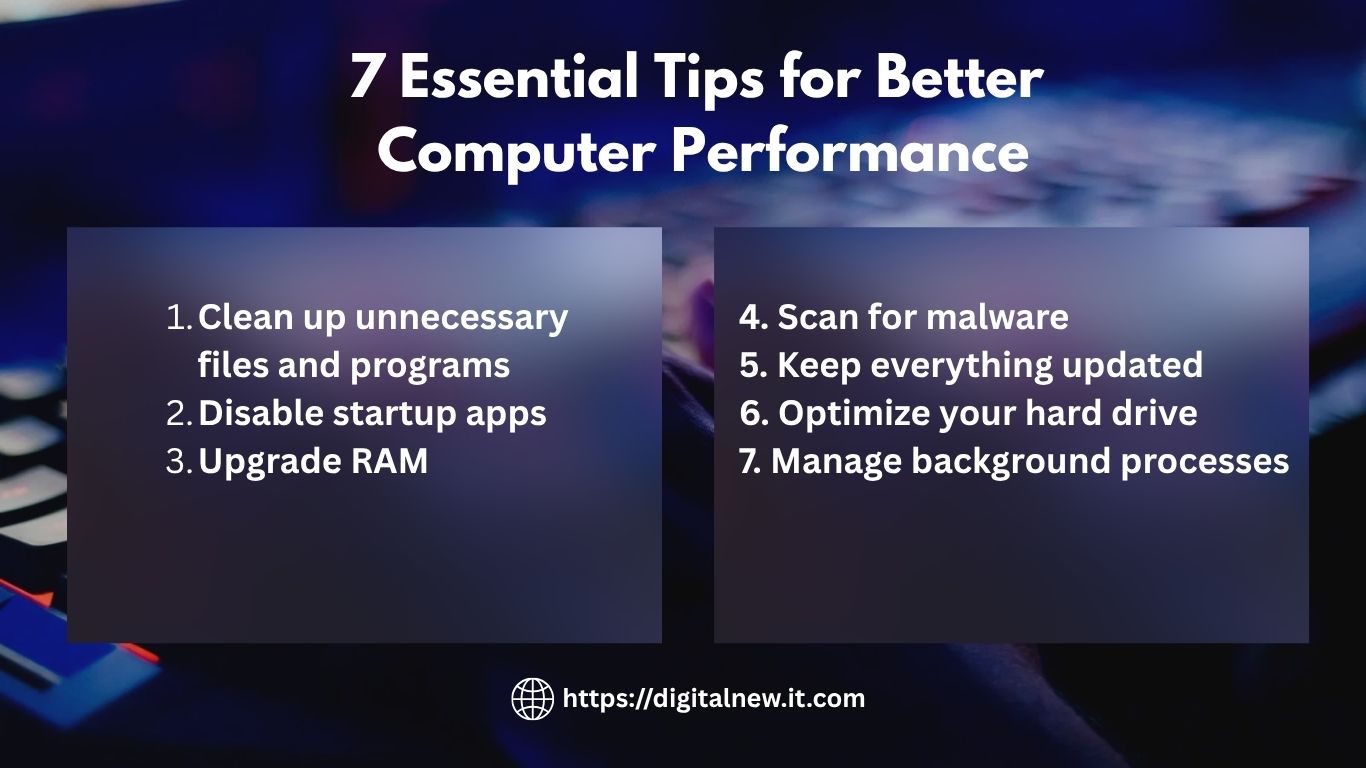
To recap the 7 essential tips:
-
Clean up unnecessary files and programs
-
Disable startup apps
-
Upgrade RAM
-
Scan for malware
-
Keep everything updated
-
Optimize your hard drive
-
Manage background processes
By following these steps, you can breathe new life into your computer and keep it running efficiently for years to come.
🔗 For more tech tips, troubleshooting guides, and optimization tools, visit: https://digitalnew.it.com